
How to Create a Manual Subscription Contract in Easy Subscriptions #
The manual subscription contract feature in Easy Subscriptions allows you to create a subscription for a customer directly from your Shopify admin. This is useful for onboarding customers manually or managing subscriptions outside of the standard checkout flow.
Note: Manual contracts can only be created if the customer has a saved payment method in Shopify.
When to Use This Feature #
-
Migrating subscribers from another platform
-
Handling special requests or offline sales
-
Creating subscription plans for VIP customers
-
Offering custom billing intervals or delivery preferences
Step-by-Step Guide #
Step 1: Access the Subscriptions Page #
-
From your Shopify Admin, go to Apps > Easy Subscriptions.
-
In the left-hand menu, click Subscriptions.

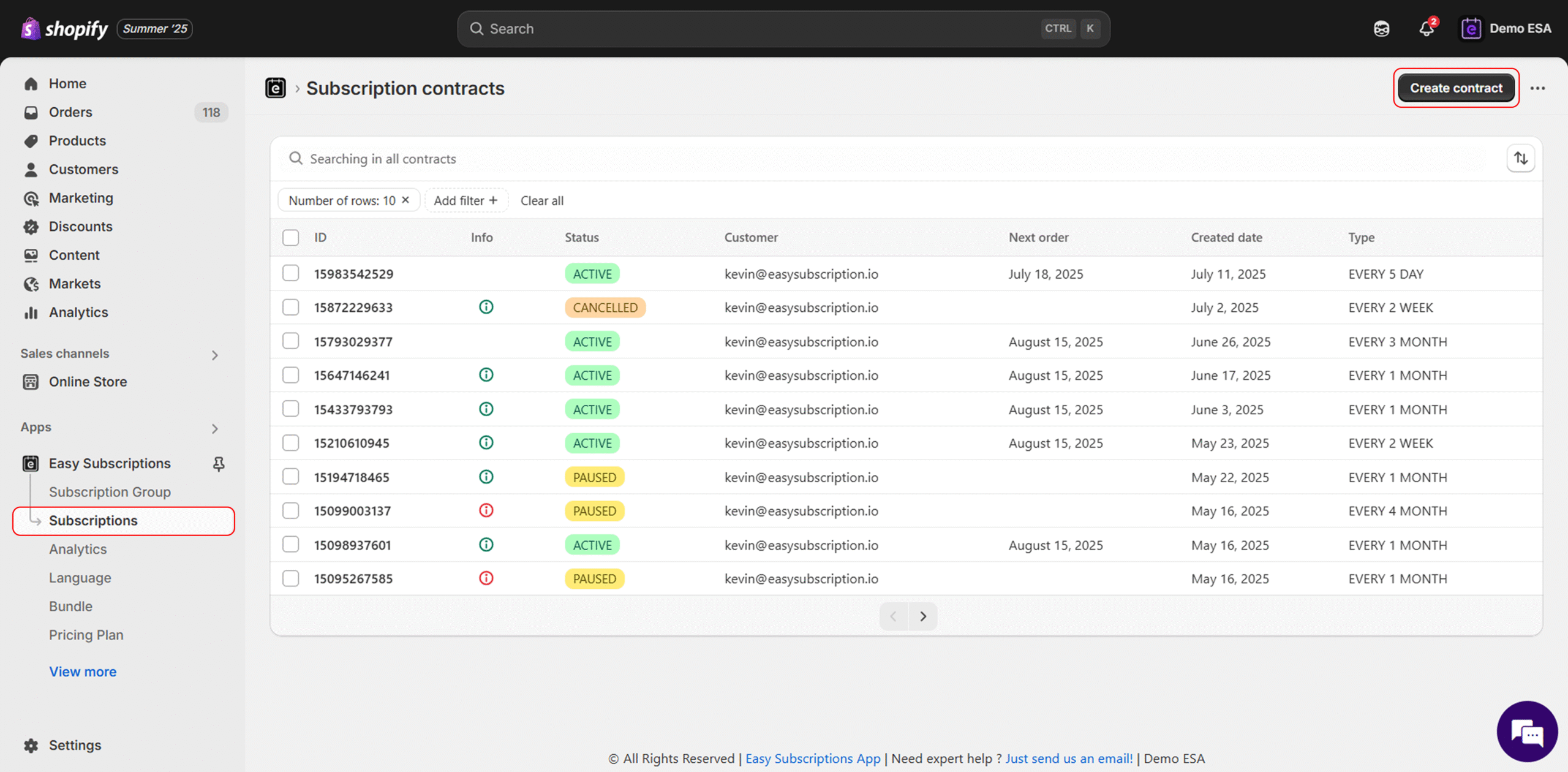
Step 2: Click “Create Contract” #
-
In the top-right corner of the Subscriptions page, click the Create Contract button.
Step 3: Fill Out Contract Details #
Status #
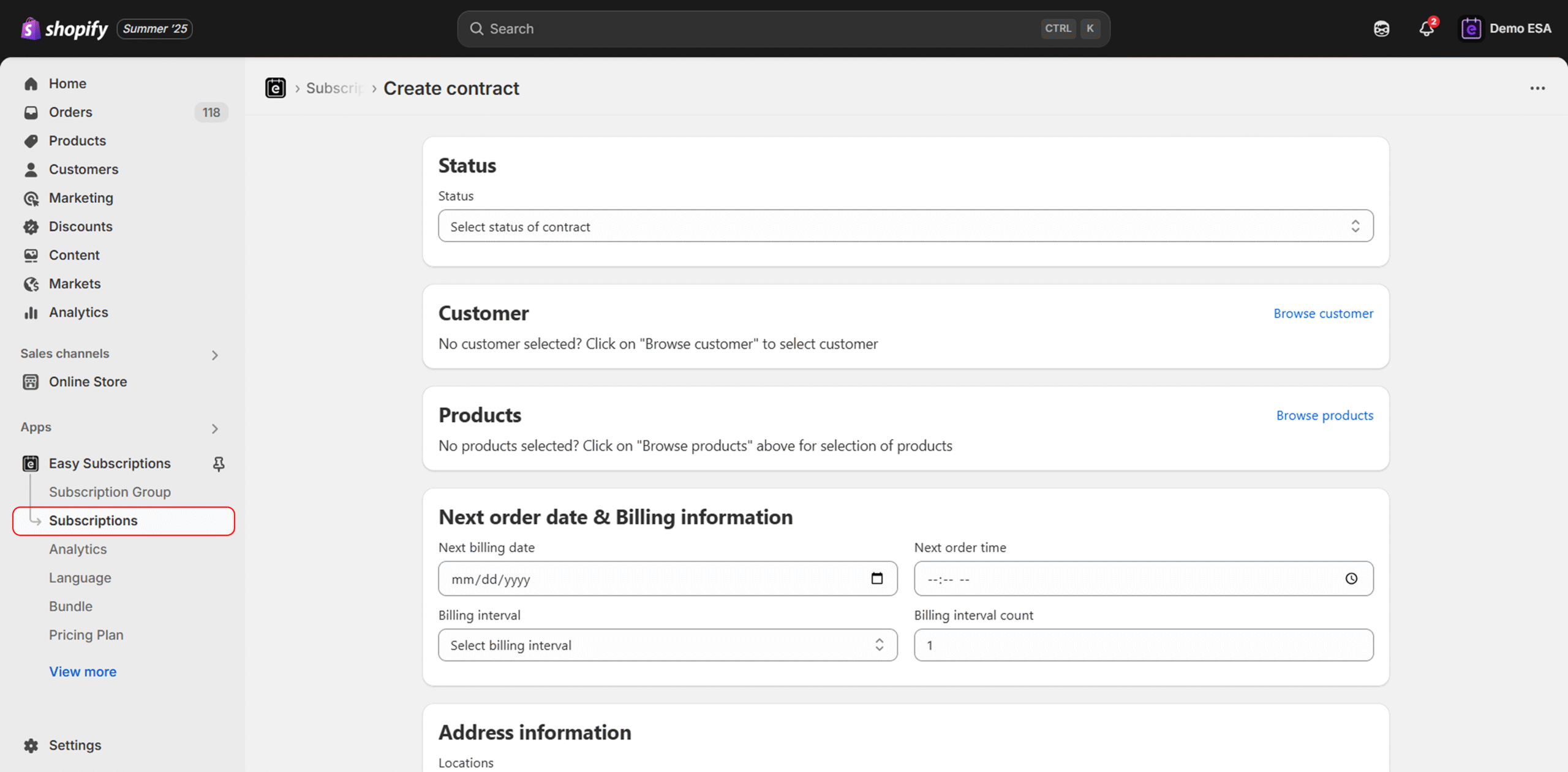 Status
 -
Choose the initial status of the contract (e.g., Active, Paused, Cancelled).
Customer #
-
Click Browse Customer to select an existing customer from your Shopify store.
-
✅ Ensure the customer has a valid saved payment method in Shopify. Without this, the contract cannot be created.
Products #
-
Click Browse Products to add one or more subscription products to the contract.
Step 4: Add Billing Information #
-
Next Billing Date: Select the upcoming billing/order date using the calendar.
-
Next Order Time: Set the time the order should be processed (optional).
-
Billing Interval: Choose how frequently the subscription renews (e.g., every 1 month).
-
Billing Interval Count: Set the frequency number (e.g., “1” for every month, “2” for every two months).
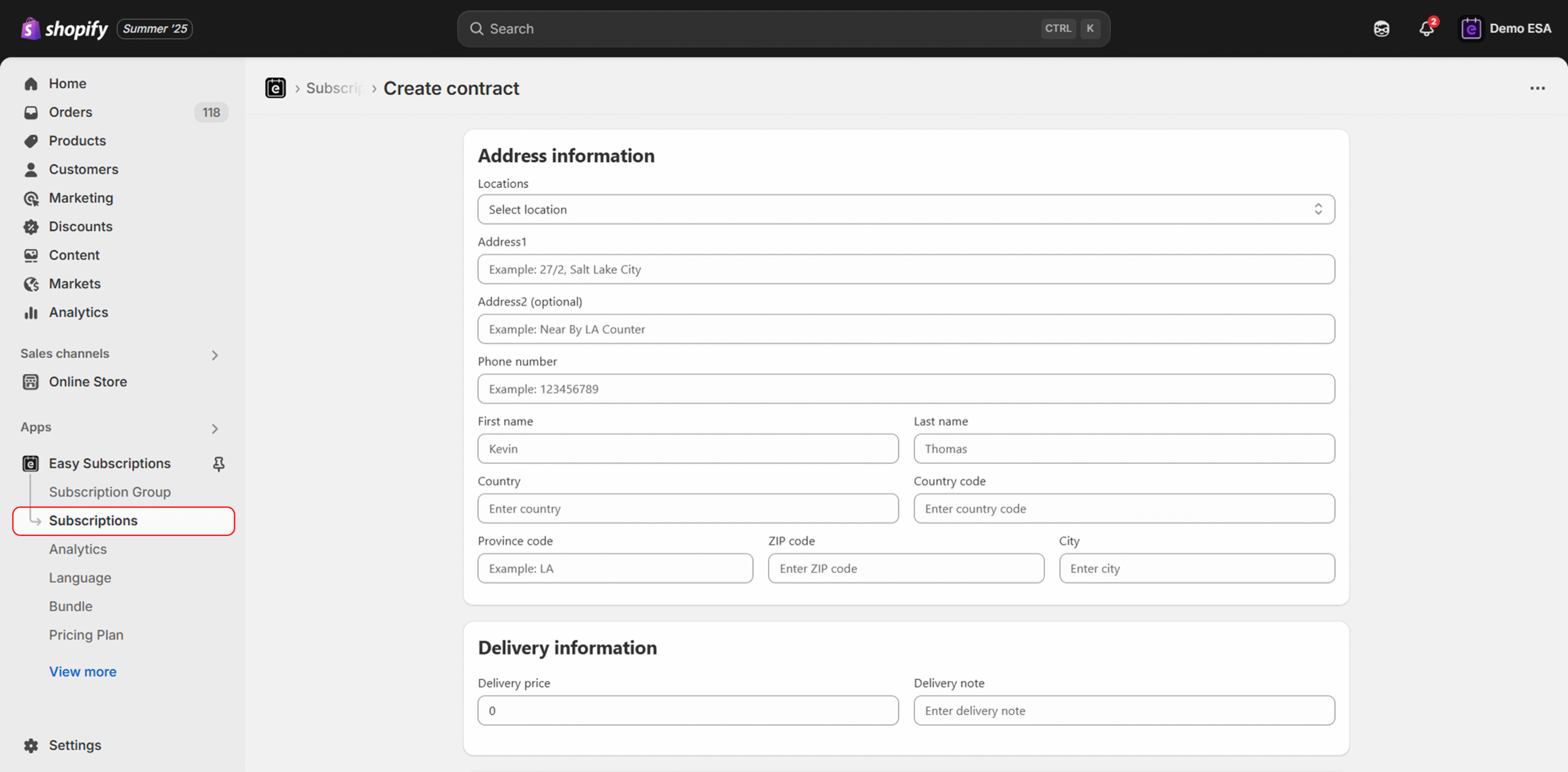
Step 5: Enter Customer Address Details #
-
Fill in the shipping address, phone number, and country/region.
-
This information is required for order fulfillment and delivery.
Step 6: Add Delivery Information (Optional) #
-
Delivery Price: Enter a custom shipping fee (if applicable).
-
Delivery Note: Add any additional delivery instructions (e.g., “Leave at front door”).
Step 7: Save the Contract #
-
Review all entered details for accuracy.
-
Click Save to create the manual subscription contract.
The contract will now appear under the Subscriptions tab and will follow the billing and delivery schedule you’ve configured.
That’s It! #
You’ve successfully created a manual subscription contract using Easy Subscriptions. The system will automatically handle billing, order generation, and notifications based on your setup.


