
Table of Contents
How to Swap or Replace a Product in a Shopify Subscription #
Overview
Merchants using the Easy Subscription app for Shopify can easily swap a product in an active subscription contract. This is useful when a customer wants to try a new variant, size, or replace an out-of-stock item.
This guide walks you through how to replace subscription items without canceling or restarting the contract.
Step 1: Access the Subscription
- From your Shopify Admin, navigate to: Apps → Easy Subscriptions → Subscriptions.
- Click on the subscription contract you want to update.

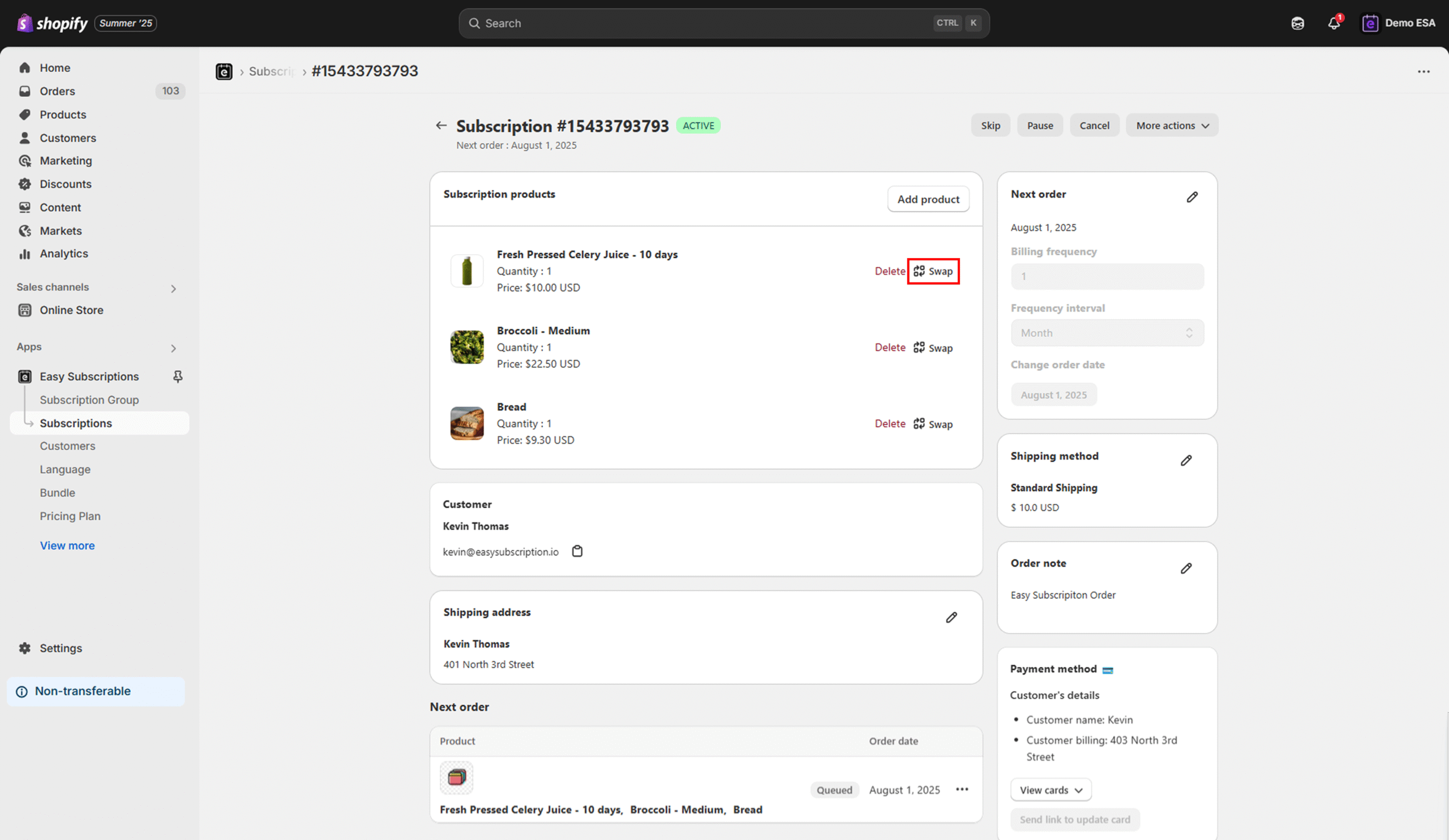
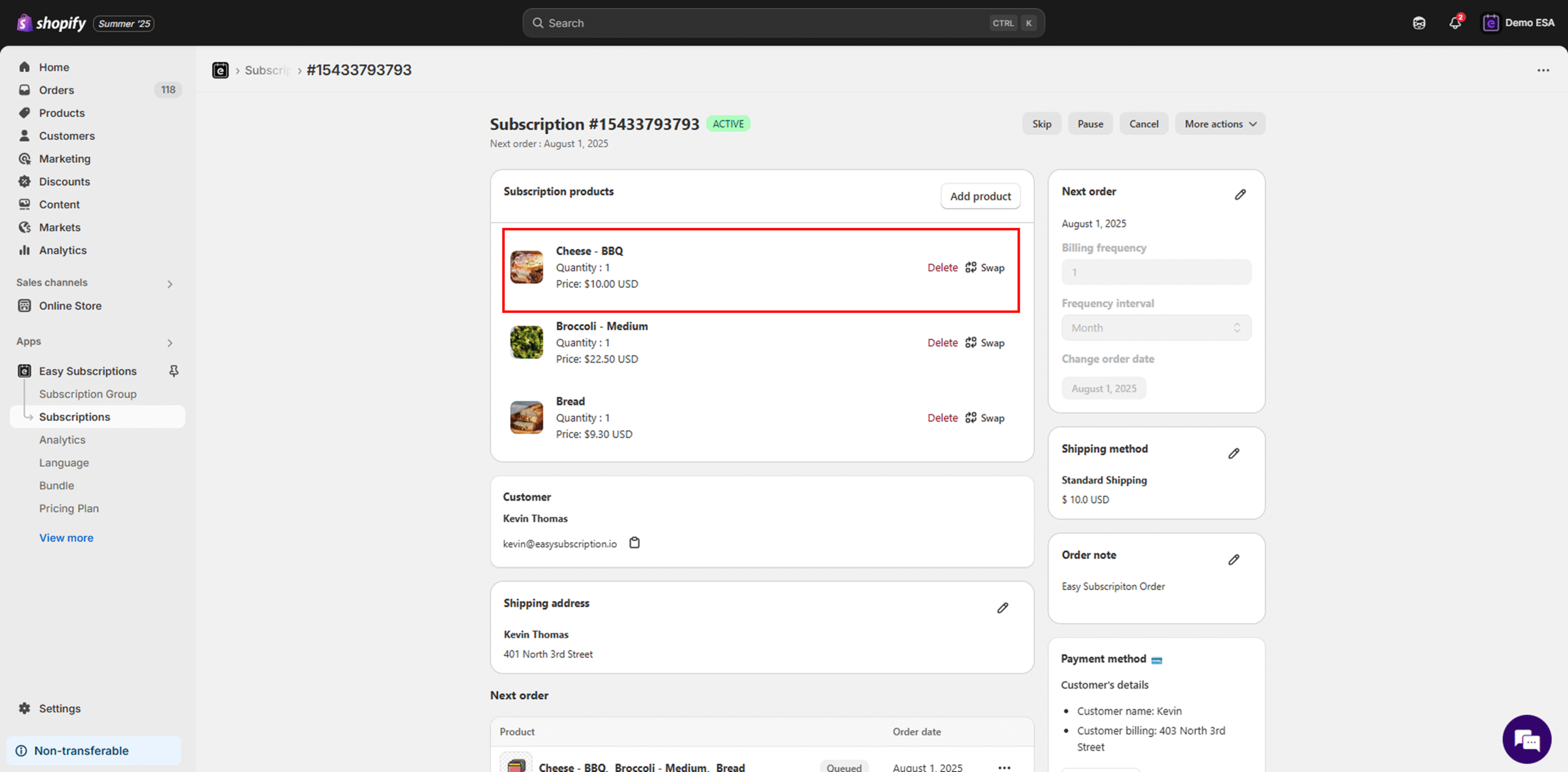
Step 2: Click “Swap”
- Within the Subscription Products section, find the item you want to replace.
- Click the Swap link next to that product.
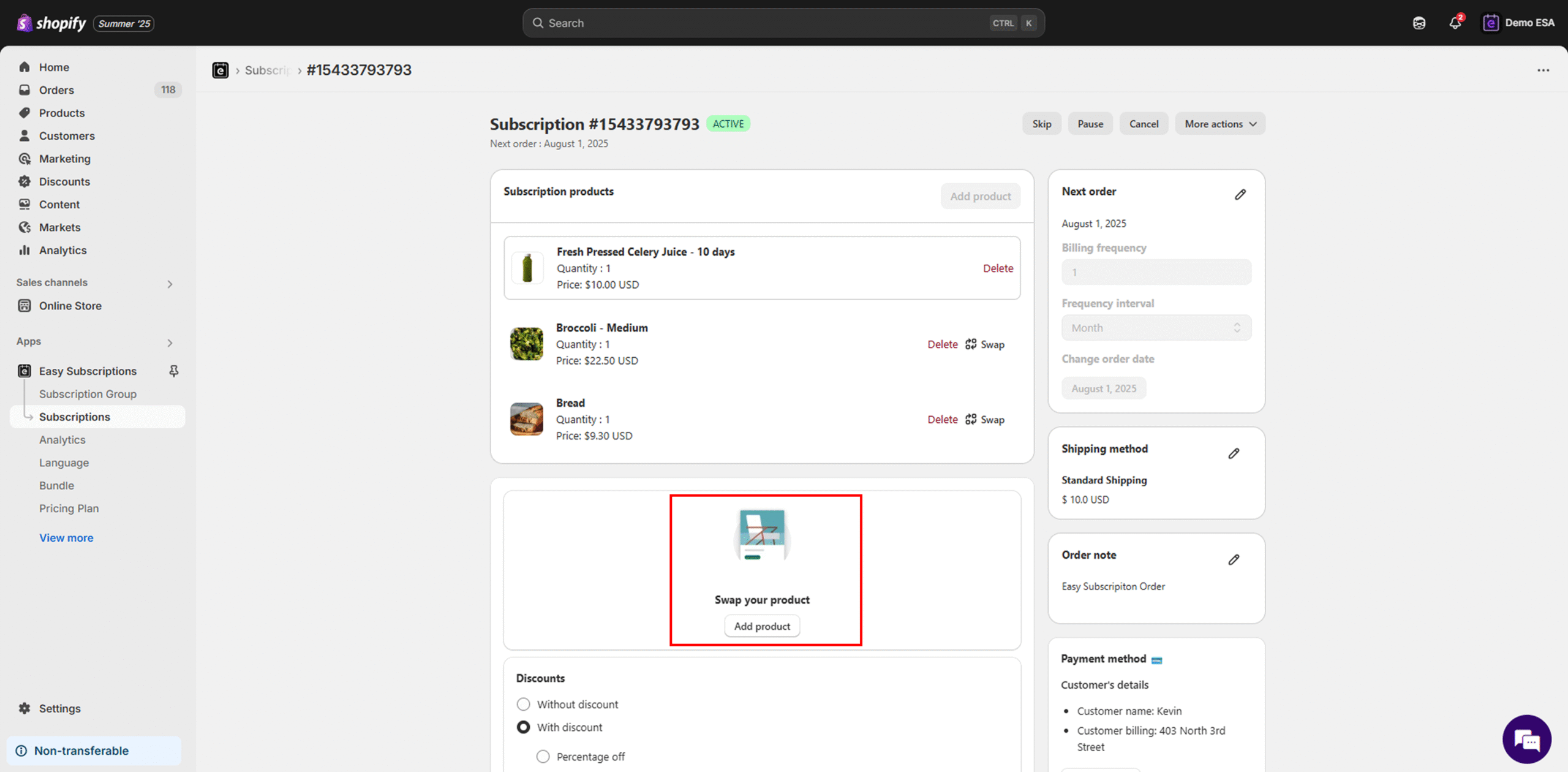
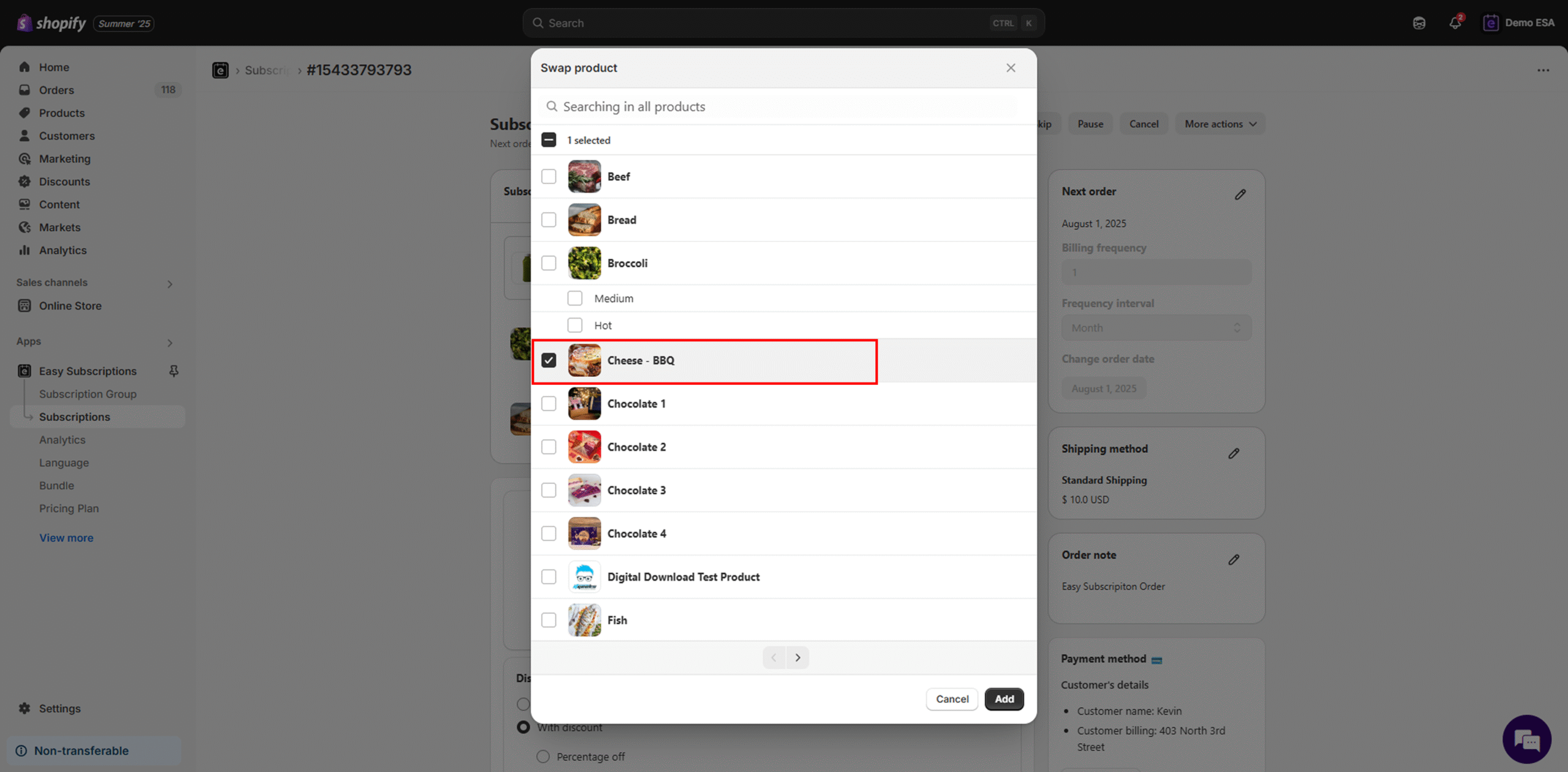
Step 3: Select a Replacement Product
- A product popup will appear with a list of eligible items.
- Select your replacement by checking the box.
- You may be prompted to choose a new delivery interval (e.g., every 10 days).
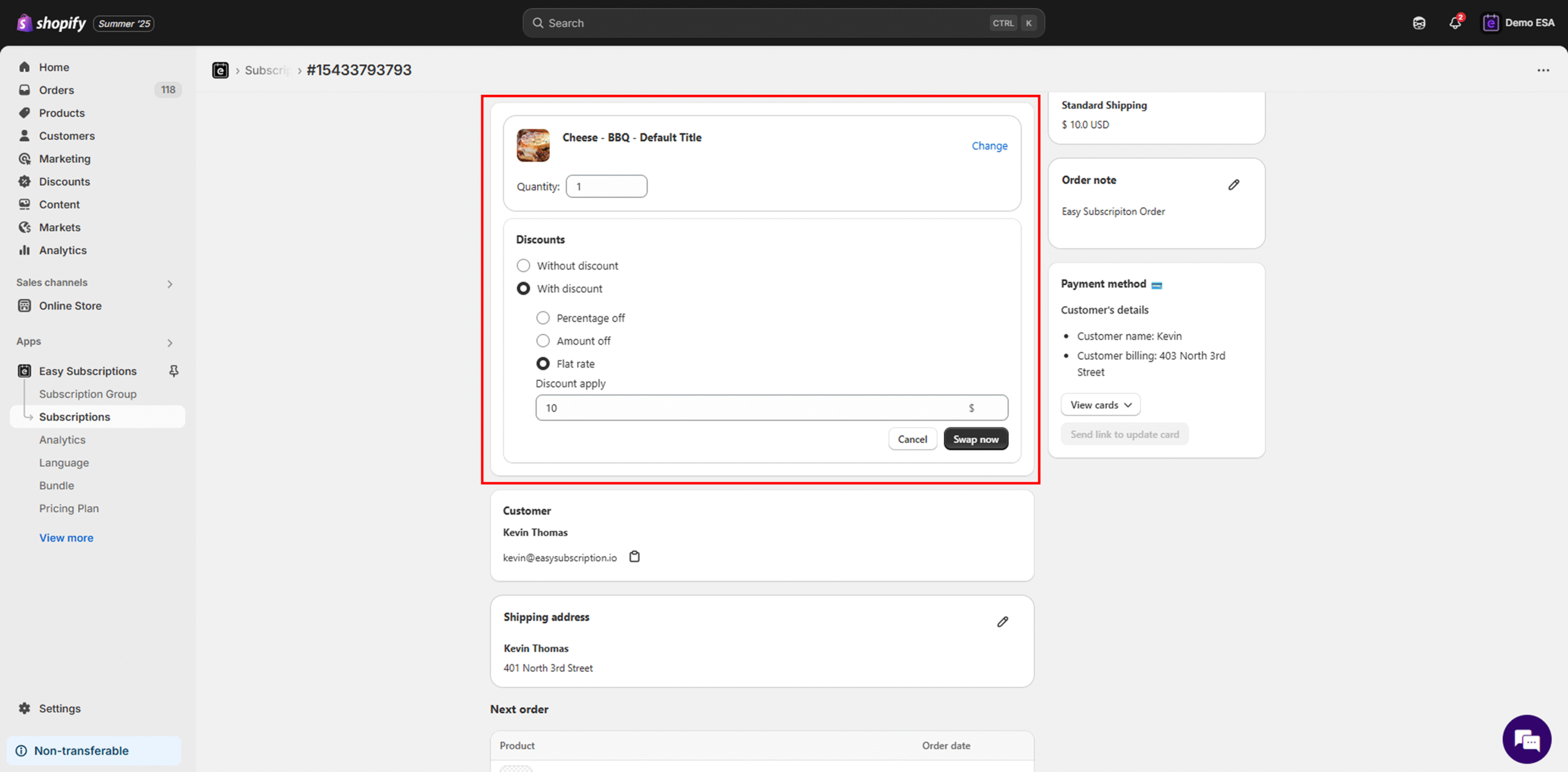
Step 4: Confirm the Swap
- Once your selection is complete, click Add at the bottom-right of the popup.
- The new product will now appear in the subscription, replacing the previous item.
Summary
The product swap feature in the Easy Subscription app makes it easy to replace or change items in recurring Shopify subscriptions. Whether it’s a customer-driven request or a stock issue, you can quickly update subscriptions without disruption.


